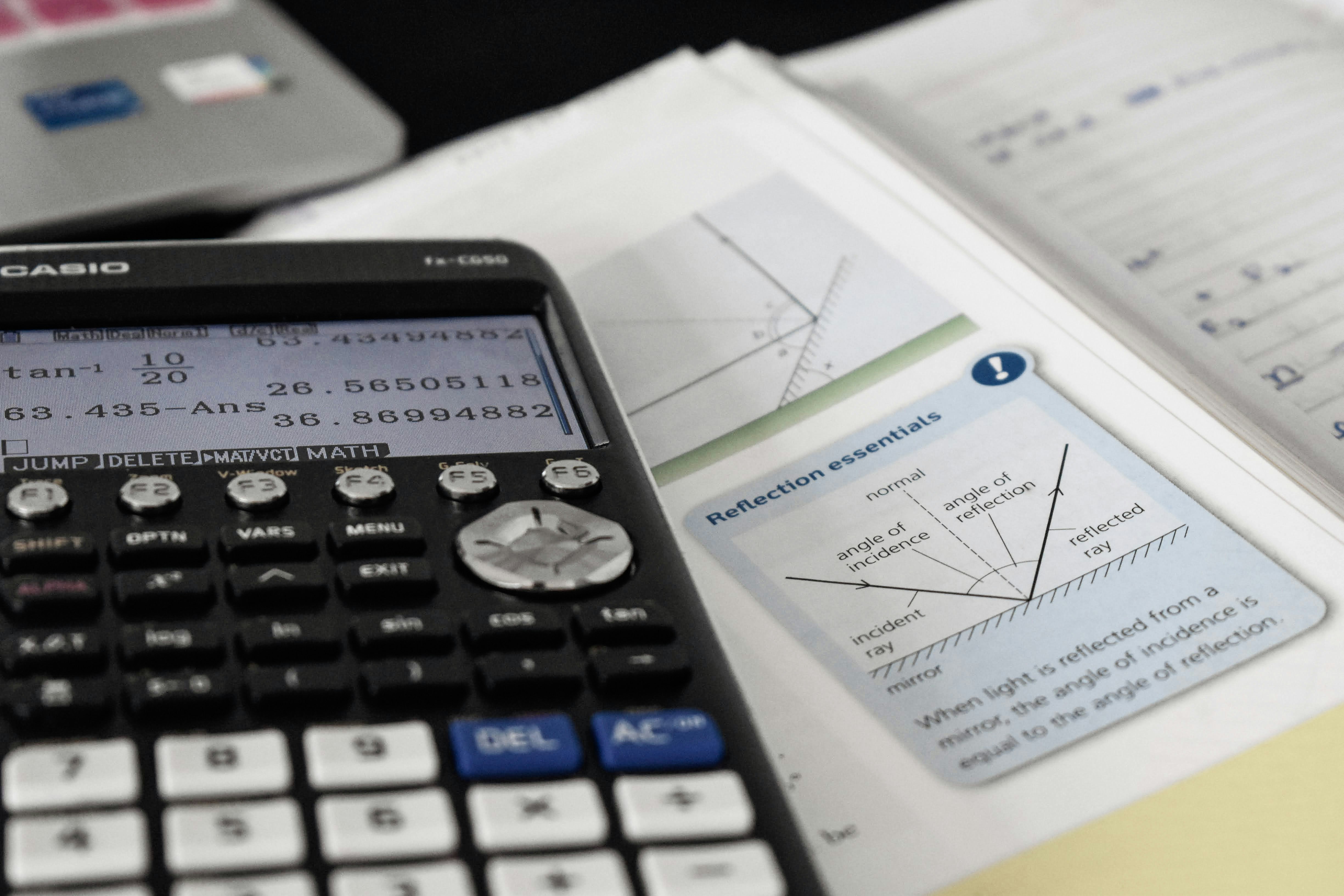
A scientific calculator can solve almost any problem in school math and science, but only if you know which button does what and which mode the calculator is in. Most wrong answers on tests come from setup mistakes, not from the math itself.
This guide walks you through the most important functions, shows you how to handle trigonometry correctly, and gives you simple checks that catch errors in seconds.
What Makes a Scientific Calculator Different?
A basic calculator handles addition, subtraction, multiplication, and division. A scientific calculator adds functions you need for algebra, trigonometry, physics, chemistry, and statistics:
- Trigonometric functions: sin, cos, tan and their inverses
- Logarithms: log (base 10) and ln (natural log, base e)
- Powers and roots: x², xʸ, √, and nth roots
- Scientific notation: the EXP or ×10ˣ key
- Memory and answer recall: M+, MR, and Ans
- Statistics modes: mean, standard deviation, and regression on many models
It also follows the order of operations, so it handles long expressions correctly when you use brackets properly.
Understanding the Main Keys
Shift and 2nd Keys
Most buttons have two or three jobs. The SHIFT or 2nd key unlocks the function printed above a button. For example, on most models, SHIFT + sin gives sin⁻¹, the inverse sine.
Ans and Memory
The Ans key stores your last result. Use it to continue a multi-step problem without retyping long decimals. This keeps full precision and avoids rounding errors.
The Negative Sign vs. the Minus Key
Many calculators have a separate (−) key for negative numbers. Using the subtraction key at the start of an expression can cause a syntax error or a wrong result.
How to Do Trigonometry on a Scientific Calculator
Trigonometry is where most mistakes happen, and nearly all of them come from one setting: angle mode.
Step 1: Check Degree or Radian Mode
Your scientific calculator measures angles in one of these modes:
- DEG (degrees): used in most school geometry and triangle problems
- RAD (radians): used in calculus, physics, and anything involving π
- GRAD (gradians): rarely used; avoid it unless your course asks for it
Look for a small D, R, or G on the screen. If you are unsure, test it: sin(90) should equal 1 in degree mode.
Step 2: Enter the Function
- Press sin, cos, or tan.
- Type the angle.
- Close the bracket if your calculator opens one.
- Press =.
Examples in degree mode:
| Input | Result |
|---|---|
| sin(30) | 0.5 |
| cos(60) | 0.5 |
| tan(45) | 1 |
Now look at what happens if the same scientific calculator is in radian mode: sin(30) gives about −0.988. That one setting turns a correct answer into a wrong one.
Step 3: Use Inverse Functions to Find Angles
When you know a ratio and need the angle, use the inverse function:
- sin⁻¹(0.5) = 30°
- cos⁻¹(0.5) = 60°
- tan⁻¹(1) = 45°
Remember that inverse sine and cosine only accept values between −1 and 1. Anything else gives a math error, which usually means a mistake earlier in your working.
Logs, Exponents, and Scientific Notation
Logarithms
- log uses base 10: log(1000) = 3
- ln uses base e (about 2.718): ln(e) = 1
Many newer models also have a logₐb key for any base.
Powers and Roots
Use x² for squares, xʸ or ^ for other powers, and √ for square roots. For cube roots or higher roots, look for ˣ√ above another key.
Scientific Notation the Right Way
To enter 6.02 × 10²³, type 6.02 EXP 23 (or 6.02 ×10ˣ 23). Do not type "× 10 EXP 23" – that adds an extra factor of 10 and makes your answer ten times too large.
Order of Operations and Brackets
A scientific calculator follows the standard order: brackets, powers, multiplication and division, then addition and subtraction.
Two common traps:
- −3² gives −9, because the square applies before the negative sign. Type (−3)² to get 9.
- Fractions need brackets. To compute (8 + 4) ÷ (2 + 1), type the brackets. Without them, you get 8 + 4 ÷ 2 + 1 = 11 instead of 4.
Pro tip: Different brands treat implied multiplication, such as 6 ÷ 2(1 + 2), in different ways. Add a clear multiplication sign and brackets so your calculator cannot misread your intent.
The Unique Value Section: Five 10-Second Sanity Checks
Teachers rarely teach this, but it saves marks. Before you write a final answer, run these quick checks:
- Mode check: Did sin(90) give 1? If not, you are not in degree mode.
- Range check: Sine and cosine of any angle always fall between −1 and 1. A result like 1.4 means an error.
- Size check: Estimate roughly first. If you expect around 50 and see 5,000, a unit or EXP mistake is likely.
- Reverse check: Undo your answer. If √x gave 7, does 7² give x?
- Bracket count: Count opening and closing brackets in long entries. Missing one changes the order of operations.
These habits turn your scientific calculator into a reliable partner instead of a source of surprise errors.
Choosing a Scientific Calculator for School or Exams
- Check exam rules first. Many boards approve only specific models and ban programmable or graphing calculators.
- Look for a natural display. It shows fractions and roots the way they appear in your textbook.
- Practice on the same model you will use in the exam. Key layouts differ between brands.
Expert Tip and Final Takeaway
A scientific calculator is powerful, but small setup errors cause most wrong answers. Always confirm your angle mode, use brackets generously, enter scientific notation correctly, and run quick sanity checks before moving on.
Expert tip: At the start of every test, reset your calculator's mode settings and run the sin(90) = 1 check. That ten-second habit prevents the most common trigonometry mistake students make.